
dde-file-manager
Description
dde-file-manager is a powerful, easy-to-use file management tool. It follows the classic functions and layouts of traditional file managers, and on this basis simplifies user operations and adds many special functions. The clear navigation bar, intelligently recognized search box, diverse views and sorting make it easy for you to manage, classic and beyond, just to give you a better experience!
Software Architecture
Software architecture description
Installation
dnf install dde-file-manager
Instructions
Run dde-file-manager
- Click the launcher icon on the dock to enter the launcher interface.
- Scroll the mouse wheel up or down to browse or search for the dde-file-manager icon , and click Run.
- By right-clicking the dde-file-manager icon, you can:
- Click Send to Desktop to create a shortcut on the desktop.
- Click Send to dock to pin the app to the dock.
- Click Add to startup to add the application to the startup items to automatically run the application when the computer is turned on.
TIP: You can also use the shortcut Super + E to launch the dde-file-manager.
Close the dde-file-manager
- In the dde-file-manager interface, click X to exit the dde-file-manager.
- Right-click the dde-file-manager icon on the taskbar and select Close All to exit the dde-file-manager.
- On the dde-file-manager interface, click the menu bar and select Exit to exit the dde-file-manager.
View shortcut keys
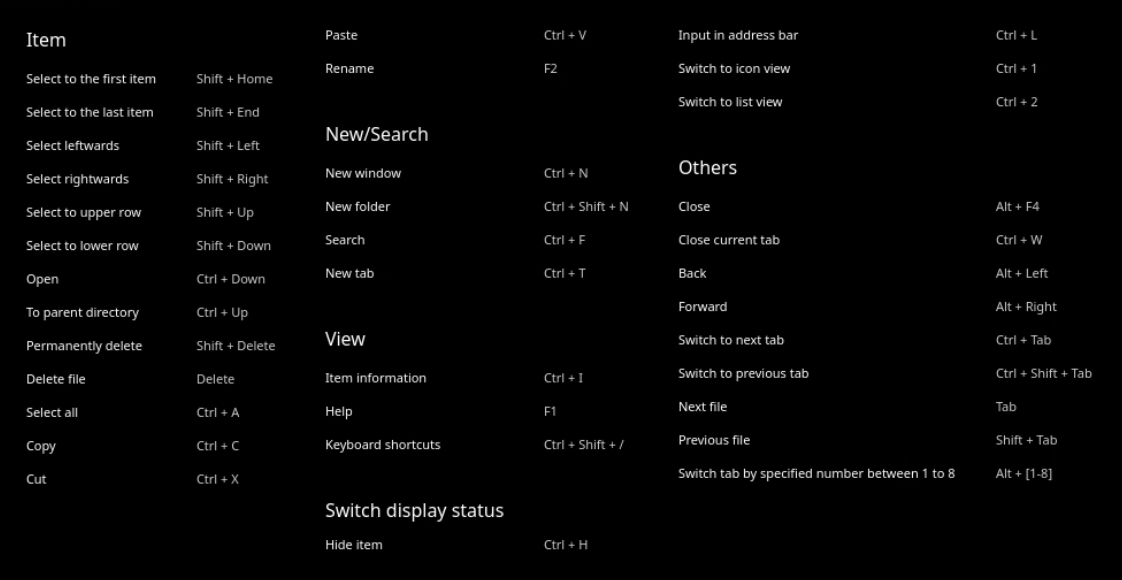
In the dde-file-manager interface, use the shortcut keys Ctrl + Shift + / to open the shortcut key preview interface. Skilled use of shortcut keys will greatly improve your operational efficiency.
Basic Skills
The dde-file-manager has basic file management functions, and it is very simple to create, copy, rename, and delete files (folders).
Create a new file
New document
- In a blank area of the file manager, right-click.
- Select New Document.
- Select the type of new file from the drop-down menu.
- Enter a name for the new file.

New folder
- In a blank area of the file manager, right-click.
- Select New Folder.
- Enter a name for the new folder.
Rename file
- In the file manager interface, right-click the file.
- Select Rename.
- Enter the file name and press Enter or click in the blank area of the interface.
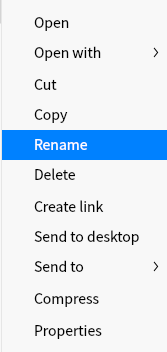
Tip: Check "Hide file extension when rename" in Settings, it can be more convenient to modify the file name
Contribution
- Fork the repository
- Create Feat_xxx branch
- Commit your code
- Create Pull Request
Gitee Feature
- You can use Readme_XXX.md to support different languages, such as Readme_en.md, Readme_zh.md
- Gitee blog blog.gitee.com
- Explore open source project https://gitee.com/explore
- The most valuable open source project GVP
- The manual of Gitee https://gitee.com/help
- The most popular members https://gitee.com/gitee-stars/