
dde-dock
Description
Dock is at the bottom of the desktop by default to help you quickly open frequently-used applications, which includes Launcher, applications, system tray, and plugins. In the dock, you can open launcher, show the desktop, enter the workspaces, open and exit apps, set input methods, adjust the volume, connect to the network, view the calendar and enter the shutdown interface, and so on.
Software Architecture
Software architecture description
Installation
dnf install dde-dock
Instructions
1.Icons on Dock
In the Dock, there are icons of Launcher, applications, system tray, and plugins.
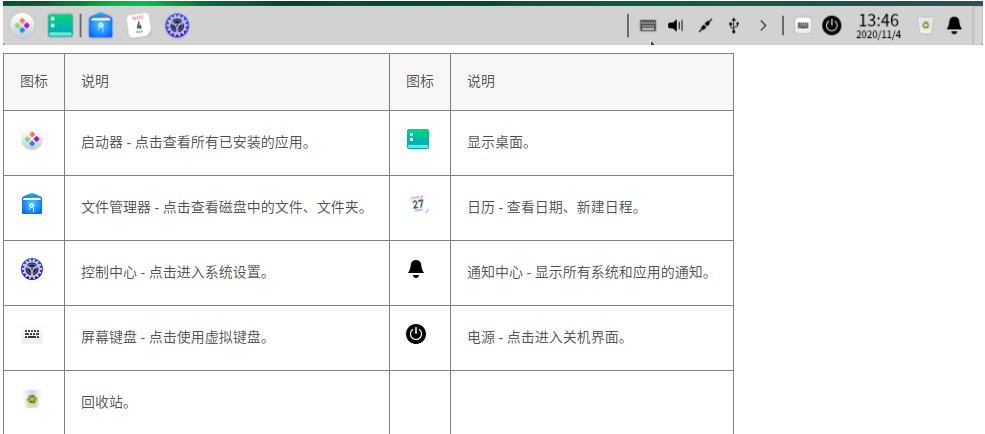
2.Switch Display Mode
There are two display modes of Dock: fashion mode and efficient mode, icon sizes are different in them.

You can switch the display modes by the following operations:
(1)Right-click the Dock and select Mode.
(2)Select the display mode.
3.Change Dock Location
You can place Dock on any direction of your desktop.
(1)Right-click the Dock and select Location.
(2)Select a location.
4.Change Dock Height
Drag the top edge to increase or decrease the height
5.Show/Hide Plugins
(1)Right-click the Dock and select Plugins.
(2)On the submenu, you can check or uncheck Trash, Power, Show Desktop, Onboard, and Datetime to show or hide the corresponding icon in the Dock
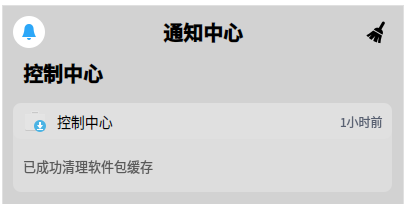
6.View Notifications
When there are system or application notifications, they will be shown in the middle of the screen. If there are buttons in the message, click buttons to do the actions; if there are not, click the message to close it.
7.Vies Date and Time
- Hover the cursor over the Time icon in Dock to view the current time, date and day of the week.
- Click the Time icon to open Calendar.
8.Enter Shutdown Interfack
There are two ways to enter the shutdown interface:
- Click
 in Dock.
 - Click
 at the bottom right corner of Launcher mini mode.
| Function | Description |
|---|---|
| Shut down |
Shut down the computer. |
Reboot  |
Restart the computer. |
Lock  |
Lock the computer with the password. Or press Super + L to lock it. |
Switch user  |
Log in with another user account. |
Log out  |
End all the processes and initialize the system. |
Start system monitor |
View the running processes and end the one you want |
Contribution
- Fork the repository
- Create Feat_xxx branch
- Commit your code
- Create Pull Request
Gitee Feature
- You can use Readme_XXX.md to support different languages, such as Readme_en.md, Readme_zh.md
- Gitee blog blog.gitee.com
- Explore open source project https://gitee.com/explore
- The most valuable open source project GVP
- The manual of Gitee https://gitee.com/help
- The most popular members https://gitee.com/gitee-stars/